

Microsoft Fabric Sandbox Environments
Sorry, what was the issue again?
Microsoft Fabric is an analytics platform to support various data-related needs. The platform explicitly targets use cases of (large) enterprises and is not necessarily well suited for personal use. Thus, while Microsoft lets curious first-timers have a 60-day trial period free of charge, this access is only granted to people with a valid company or work email address.
However, even when proudly owning such an illustrious contact method, sometimes you might like having your very own, personal sandbox. Maybe, you want to make sure that no company policies accidentally remove your workspaces after an unknown retention period, maybe your experiments are morally questionable and you do not want your colleagues to know. In any case, there are many reasons for having your own playground - and the following paragraphs will show you, how to get there.
The approach that used to work
The reason for writing this post is an omnipresent solution, described in hundreds of other blog posts, that nevertheless no longer brings you any closer to your dream of a sandbox Microsoft Fabric environment. This approach was based on applying to the Microsoft 365 Developer Program, getting a developer subscription, and then having unlimited access to all the resources you need. Unfortunately, the requirements to actually start the developer subscription have tightened quite a lot recently. You only qualify if you either
- are a Visual Studio Subscriber
- part of certain Microsoft Partner Programs
- are employed by a company with a Premier or Unified Support Contract with Microsoft.
Notice, that you are still allowed to enter the Developer Program, it just literally comes without any benefits unless you tick one of the boxes above.
The alternative solution
The working way to our Fabric subscription is to get company-affiliated email addresses in your default Azure tenant. In short, simply follow these steps:
- Sign up for a free Azure Account - you can use your private email, say for example john.doe@outlook
.com . - Once you have your Azure tenant, go to the Entra ID settings and create a user. It will be created with a new domain based on your email address such as newuser@johndoeoutlook
.onmicrosoft . In the screenshot below you can see the newly created users blub and blob.com - Sign up for Fabric with your new user.
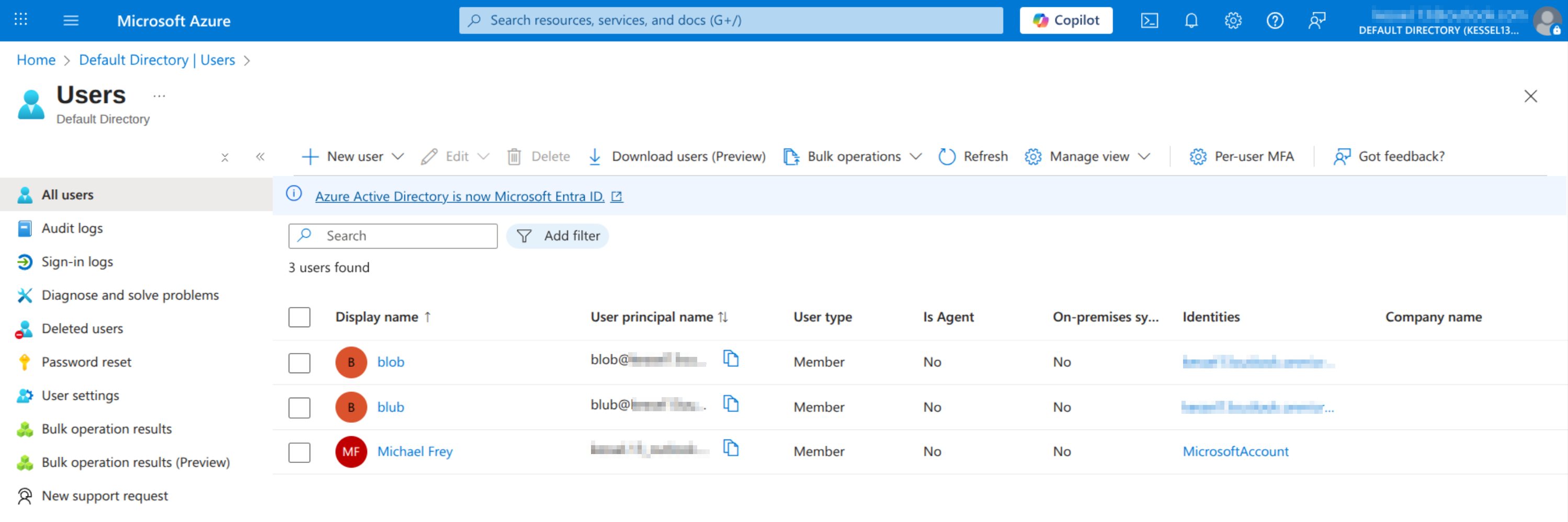
Since users created in such a way are affiliated with your Azure tenant, they qualify for a Fabric subscription and you can even get a free trial once you have logged in.
The looming expiration date
Free trials will end after 60 days for the time being. While people report that you can get a new trial subscription after the first expires, there are better ways for your business continuity.
Obviously, you can simply add new users every couple of weeks, each of which will again qualify for a new trial subscription. Unfortunately, this naive solution also leads to administrative headaches as you have to reassign access with every user rotation. To avoid such menial tasks, you can set up a security group and assign all dedicated Fabric users to it. Now, you simply need to make sure that every workspace grants admin privileges to said group, and you never have to worry again about setting up a new pseudo-user.
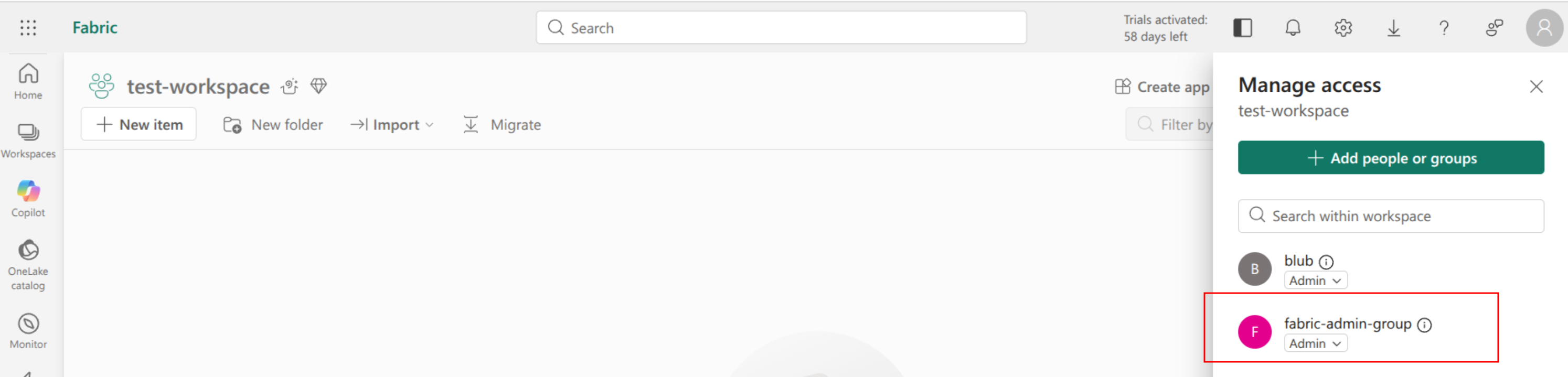
I intend to look into simple sandbox setups that do not exploit trial licenses and still only cause manageable costs in a future blog post. Nevertheless, this scenario will also need to make use of artificial users to even be able to log into the platform.